How to Trade
Coinstream gives you a full spot trading interface right inside Telegram. Buy and sell crypto with market or limit orders, track the order book in real time, and manage your positions — all without leaving the app.
This guide walks you through the interface, order types, and practical steps for placing your first trade.
Getting Started
Open @coinstream_robot and tap Open to launch the mini app. Navigate to the Trade tab at the bottom of the screen.
You'll see the trading interface with:
- A pair selector at the top (e.g., BTC/USDT with current price and 24h change)
- The order form on the left
- The order book on the right
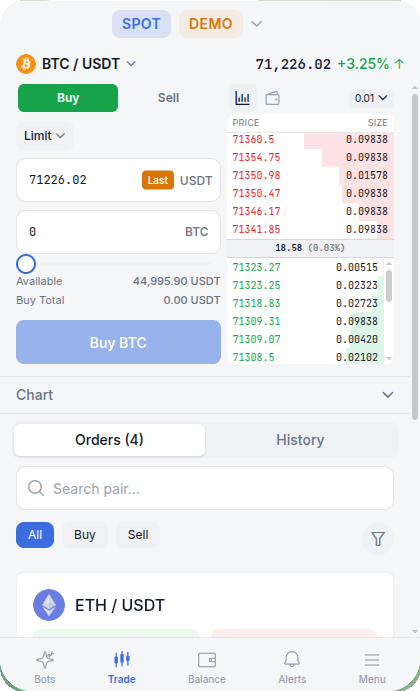
To pick a different pair, tap the pair name at the top. Popular pairs like BTC/USDT and ETH/USDT offer the best liquidity and tightest spreads.
Understanding the Trade Interface
Order Form (Left Side)
The order form is where you build your trade:
| Element | What It Does |
|---|---|
| Buy / Sell toggle | Switches between buying and selling |
| Order type dropdown | Choose Market or Limit |
| Price field | Your target price (Limit orders only) |
| Amount field | How much of the asset to buy or sell |
| Slider | Quick way to set amount as % of available balance |
| Available | Your current balance for the selected asset |
| Total | Calculated cost of the order in USDT |
Order Book (Right Side)
The order book shows real-time supply and demand:
- Red rows (top) — sell orders (asks). Other traders willing to sell at these prices
- Green rows (bottom) — buy orders (bids). Other traders willing to buy at these prices
- Spread — the gap between the lowest ask and highest bid, shown between the two sections
The tighter the spread, the more liquid the pair. You can tap any price in the order book to auto-fill it into your price field.
Order Types
Market Order
A market order executes immediately at the best available price.
When to use: you want to get in or out of a position right now. Speed matters more than getting the perfect price.
How to place: select Market from the order type dropdown, enter your amount, and confirm.
Market orders on low-liquidity pairs may fill at a worse price than expected (slippage). Stick to popular pairs for market orders.
Limit Order
A limit order sits on the order book until the price reaches your target. It only executes at your specified price or better.
When to use: you want to buy lower or sell higher than the current price. You're willing to wait for the price to come to you.
How to place: select Limit from the dropdown, enter your target price, set the amount, and confirm.
Use the Last button next to the price field to auto-fill the current market price. From there, adjust up or down to your target.
Quick Comparison
| Market Order | Limit Order | |
|---|---|---|
| Execution | Instant | When price is reached |
| Price control | No — you get the best available | Yes — your price or better |
| Best for | Fast entry/exit | Planned entries, better prices |
| Risk | Slippage on thin books | May never fill if price doesn't reach target |
Placing a Buy Order
Here's a step-by-step example — buying BTC at a specific price:
- Select the pair — tap the pair selector at the top, choose BTC/USDT
- Tap Buy — the Buy button should be highlighted (green)
- Choose order type — select Limit from the dropdown
- Set your price — enter 71,226 USDT (or tap Last and adjust)
- Enter the amount — type 0.01 BTC, or use the slider to set a percentage of your available USDT balance
- Review the total — the interface shows the total cost: ~712.26 USDT
- Tap "Buy BTC" — confirm the order
Your limit order is now live. It will fill when the market price drops to 71,226 USDT or lower.
Placing a Sell Order
Selling works the same way, with a couple of differences:
- Tap the Sell toggle — the button turns red
- The Available balance now shows your asset holdings (e.g., BTC) instead of USDT
- Set your sell price and amount
- Tap "Sell BTC"
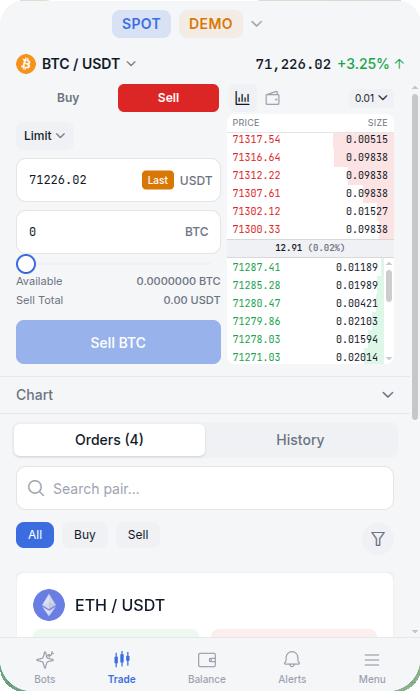
The slider on sell orders represents a percentage of your asset balance. Slide to 100% to sell your entire position.
Reading the Order Book
The order book is your window into market depth. Here's how to read it:
Sell side (red, top): orders from traders who want to sell. The lowest price at the bottom of the red section is the best ask — the cheapest price you can buy at right now.
Buy side (green, bottom): orders from traders who want to buy. The highest price at the top of the green section is the best bid — the highest price you can sell at right now.
Spread: displayed between the two sides. A small spread (e.g., 0.01%) means high liquidity. A large spread means fewer participants.
Pro tip: clicking any price row in the order book copies that price into your order form. Use this to quickly match existing orders.
Managing Open Orders
Switch to the Orders tab below the chart to see your active limit orders.
You can:
- Filter by pair, or by side (All / Buy / Sell)
- Cancel individual orders by tapping on them
- Cancel all open orders at once
If the market moves and your limit order no longer makes sense, cancel it and place a new one. There's no penalty for canceling.
Order History
The History tab shows your completed trades. Each entry includes:
- Trading pair
- Side (Buy or Sell)
- Execution price
- Amount filled
- Timestamp
Use history to review your trading patterns and track performance over time.
Demo Mode
New to trading? Start with Demo mode. It uses virtual funds with real market data, so you can practice without risking anything. Switch between Demo and Real in the top-left settings menu.
Demo mode is identical to real trading — same interface, same order book, same price feeds. The only difference is the money isn't real. Use it to:
- Learn how limit and market orders work
- Get comfortable with the interface
- Test strategies before committing real capital
Tips for Beginners
- Start with Demo mode. Get 5-10 trades under your belt before switching to real funds
- Trade popular pairs — BTC/USDT and ETH/USDT have the best liquidity, meaning tighter spreads and faster fills
- Prefer limit orders — they give you price control and protect against slippage
- Check the order book before placing large orders. If the book is thin, your market order may move the price against you
- Don't go all in — invest only what you can afford to lose, especially when you're learning
- Set alerts to get notified when price reaches your target — see Alerts
FAQ
What's the difference between Market and Limit orders?
Market orders execute immediately at the current price — fast but no price control. Limit orders wait until the market reaches your target price — slower but you choose exactly what you pay. See the comparison table above.
Are there trading fees?
You pay the exchange's standard trading fee on each order. Coinstream does not charge any additional fees on top.
What pairs are available?
All pairs supported by the connected exchange. Popular options include BTC/USDT, ETH/USDT, BNB/USDT, SOL/USDT, and dozens more. Browse the full list in the pair selector.
Can I set Take Profit and Stop Loss on manual trades?
TP/SL functionality is available for spot positions. Set a take profit to auto-sell at your target price, or a stop loss to limit downside risk.
What's the minimum order size?
Minimum order size depends on the exchange and the specific pair. For most USDT pairs, orders as small as 5-10 USDT are accepted.
Can I trade while running a bot?
Yes. Manual trading and bots operate independently. You can run a STAR Grid Bot on one pair while manually trading another — or even the same pair.
Manual trading puts you in full control. For hands-off strategies, check out the STAR Grid Bot — it trades 24/7 on autopilot.
Ready to start? Open Coinstream and place your first trade.