Account Settings
The Settings screen is your control center for Coinstream. From here you manage trading mode, exchange connections, notifications, language, and how the app looks. Everything in one place.
To open Settings: tap the Menu tab at the bottom, then Settings.
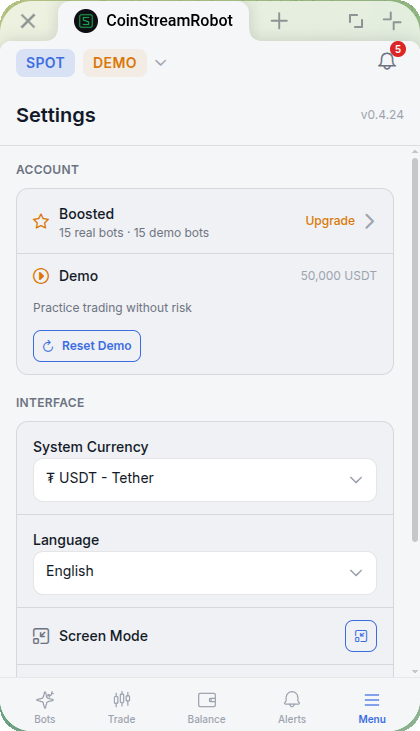
Demo / Real Mode
Switch between modes using the dropdown at the top of the screen (shows Spot by default). Select Spot Demo to enter demo mode with 50,000 USDT in virtual funds.
Switching is instant. Demo and real environments are fully isolated — bots, balances, and trade history are separate in each mode.
New to Coinstream? Start in Demo. Test your strategy with virtual funds before going live.
In demo mode, a Reset Demo button appears in Settings (Account section) — it returns your balance to 50,000 USDT and stops all demo bots.
For a full walkthrough, see Demo Mode.
Connected Exchanges
This section shows your connected exchanges and their current status.
Coinstream currently supports AsterDEX. Connect it once and your bots can start trading.
| Status | Meaning |
|---|---|
| Connected | Everything is working — bots can trade |
| Error | Problem with your keys — check them on the exchange side |
If you see an error, the most common cause is expired or revoked API keys. Regenerate them on AsterDEX and update the connection in Coinstream.
Notifications
Coinstream sends all notifications through Telegram — the same chat where you opened the bot. No extra apps or setup needed. You'll receive messages about bot events, alert triggers, and platform updates.
Interface Language
Go to Settings and find the Language section. Available options: EN, RU, ES.
Select a language and the entire interface updates instantly — menus, buttons, system messages, everything. No restart required.
Screen Mode
Settings → Interface section offers display options to customize how the app looks on your device.
Security
Coinstream authentication is tied to your Telegram account. There's no separate password to create or remember — login happens automatically through the Telegram Mini App.
Never share access to your Telegram account with anyone. Your Coinstream account is only as secure as your Telegram.
FAQ
How do I switch to a different Telegram account?
Coinstream is linked to the Telegram account that opened the mini app. To use a different account, open @coinstream_robot from that other Telegram account.
What happens to my bots if I disconnect the exchange?
Active bots will stop. Open orders will be cancelled. Your funds remain on the exchange — Coinstream has no ability to withdraw them.
Why am I not receiving notifications?
Make sure you haven't blocked the bot in Telegram. Also check that notifications from the bot aren't muted in your Telegram settings.
How do I delete my account?
Contact support through @coinstream_robot. Before requesting deletion, stop all running bots and disconnect your exchanges. Deletion is permanent and removes all stored data.
Settings take a few minutes to configure and rarely need revisiting. Get your notifications dialed in and your exchange connected — then focus on your trading strategy.
Just getting started? Check out Getting Started for a full walkthrough.